 Photoshop
 Illustrator
 After Effects
 Figma
 Affinity
Pattern Merge Effect
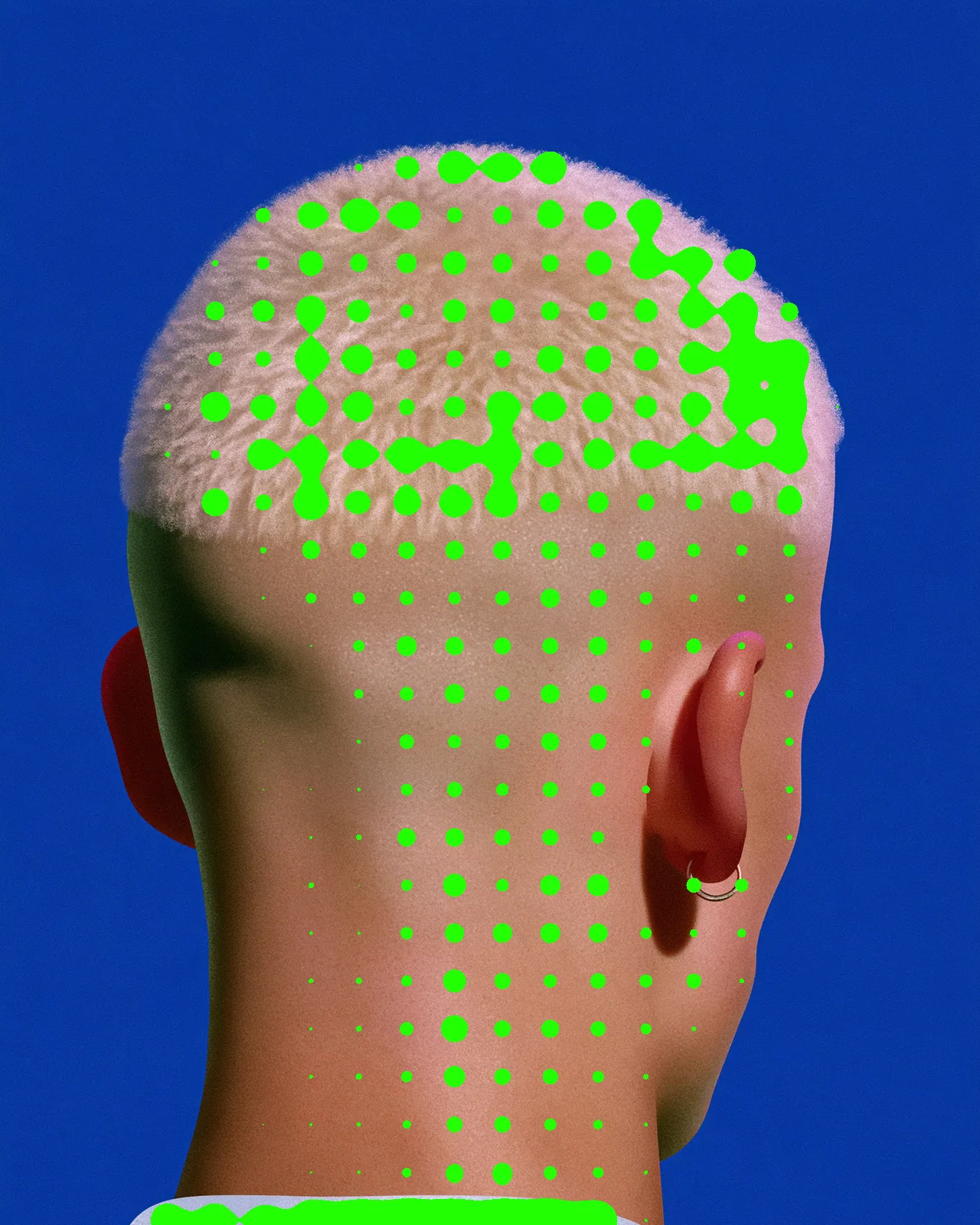
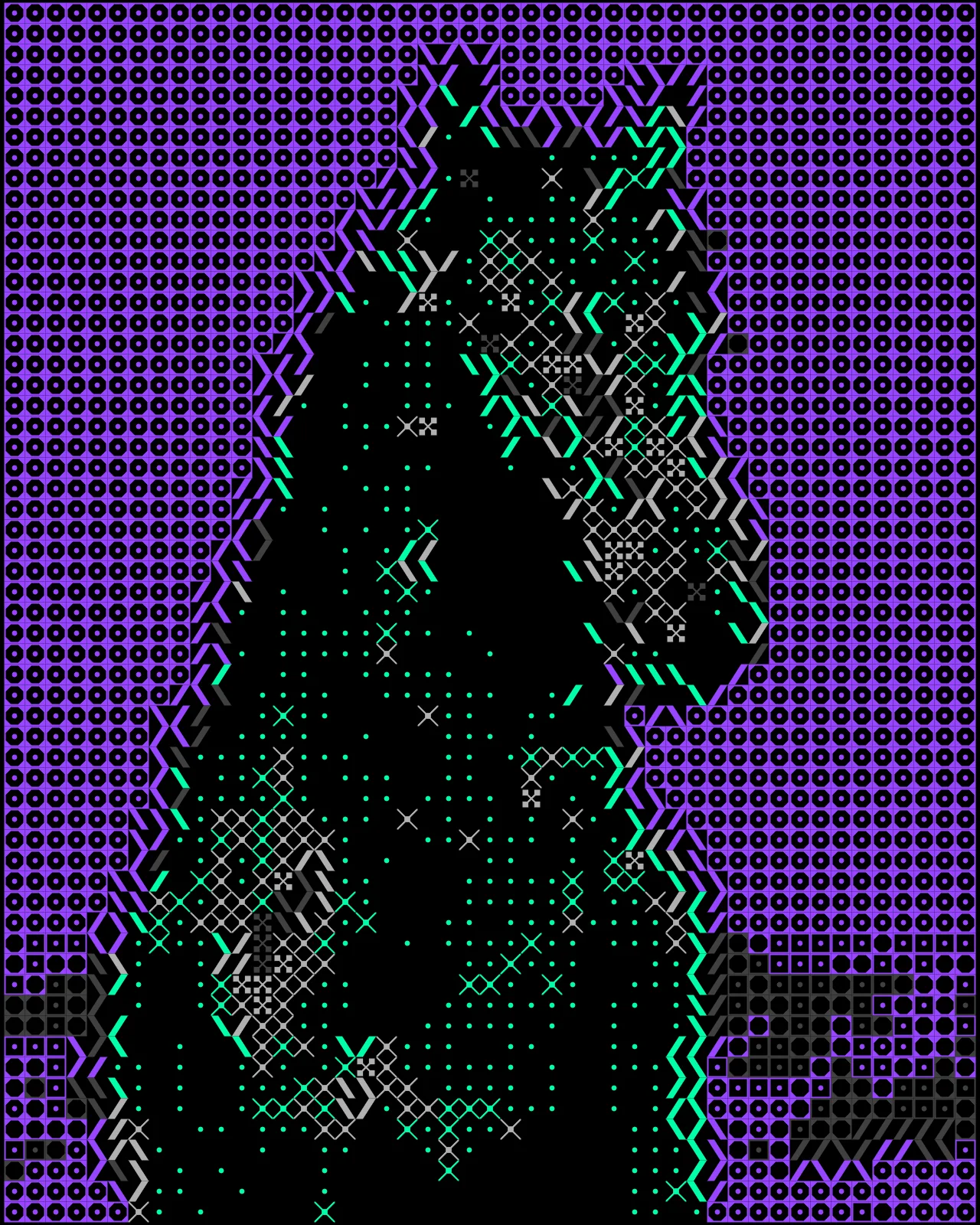
Picks out the edges, brights or darks of any picture and redraws them as dots that merge into one rounded shape.
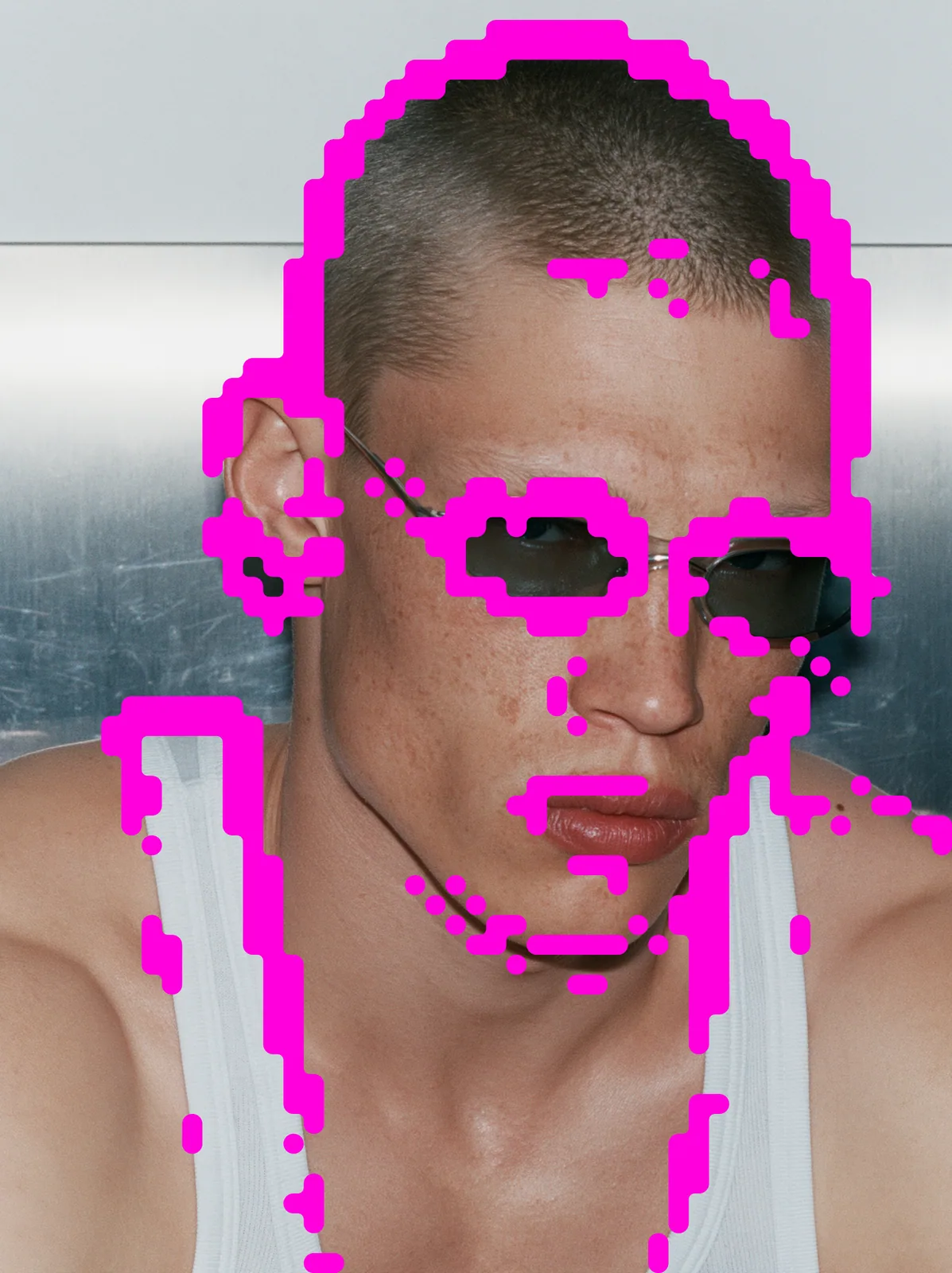
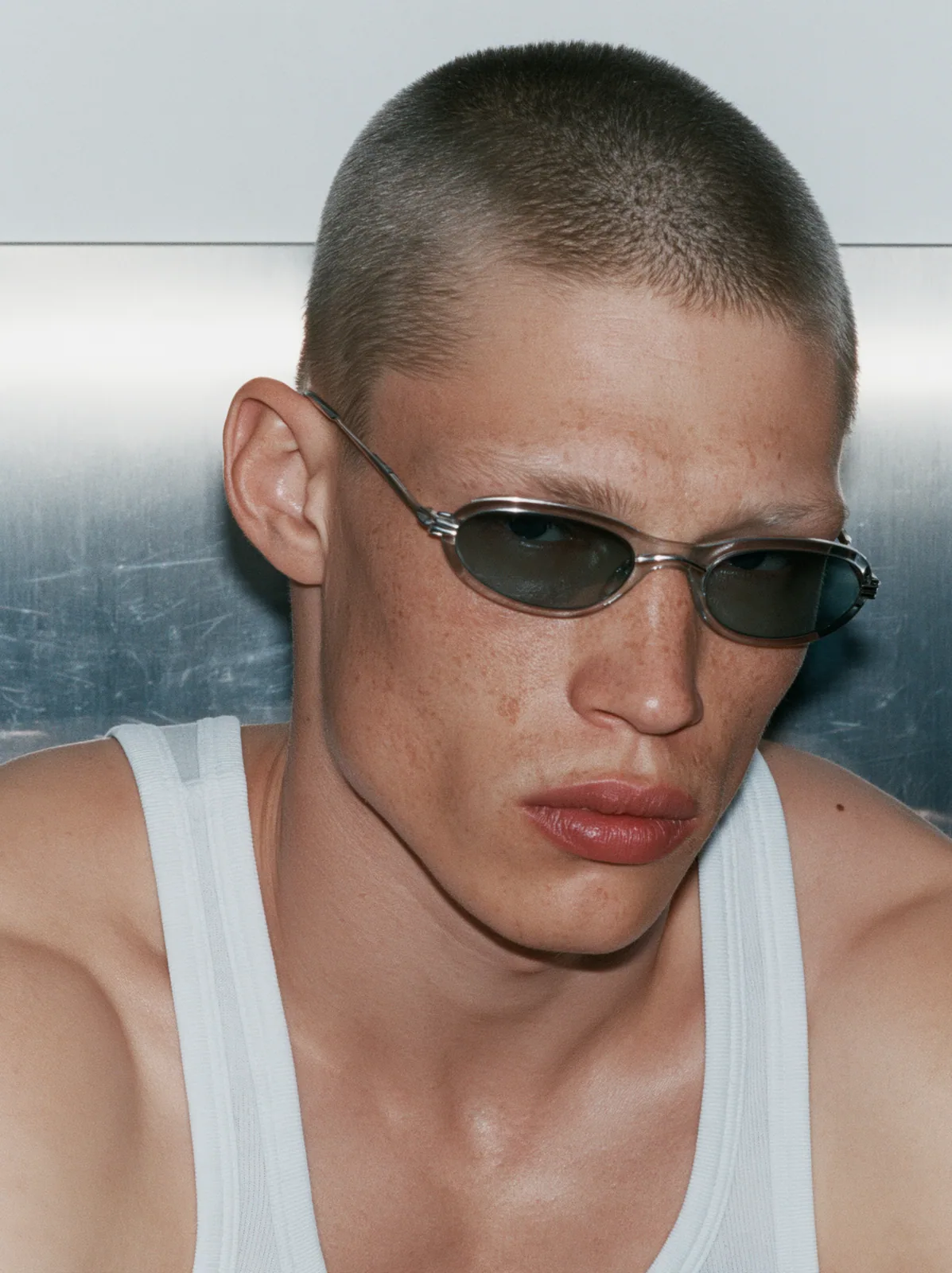
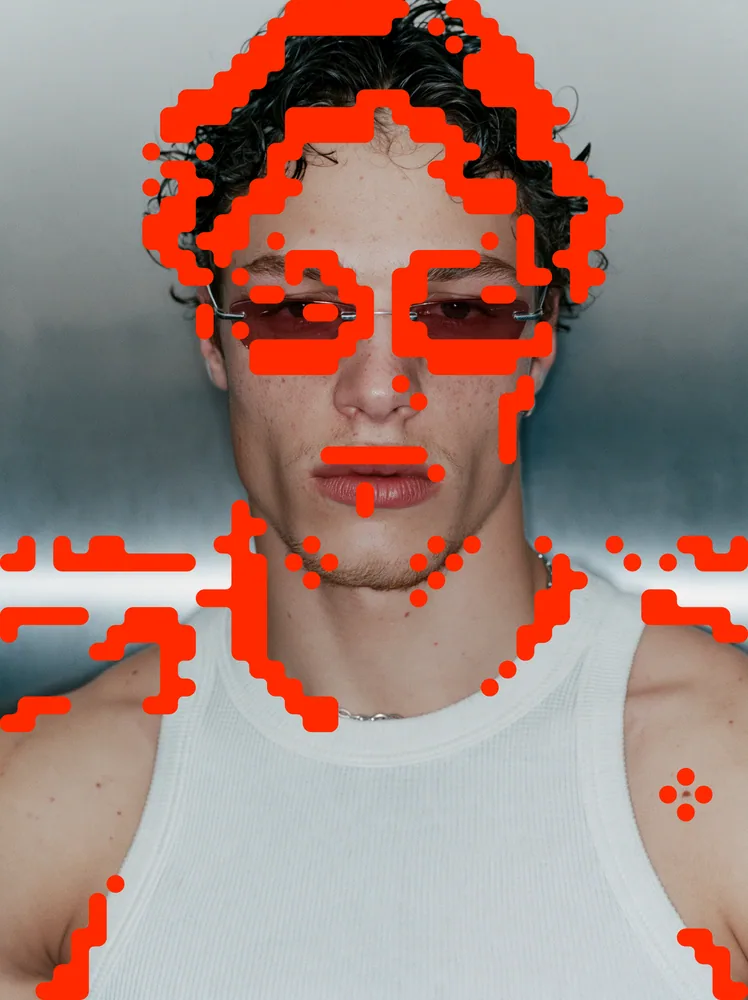
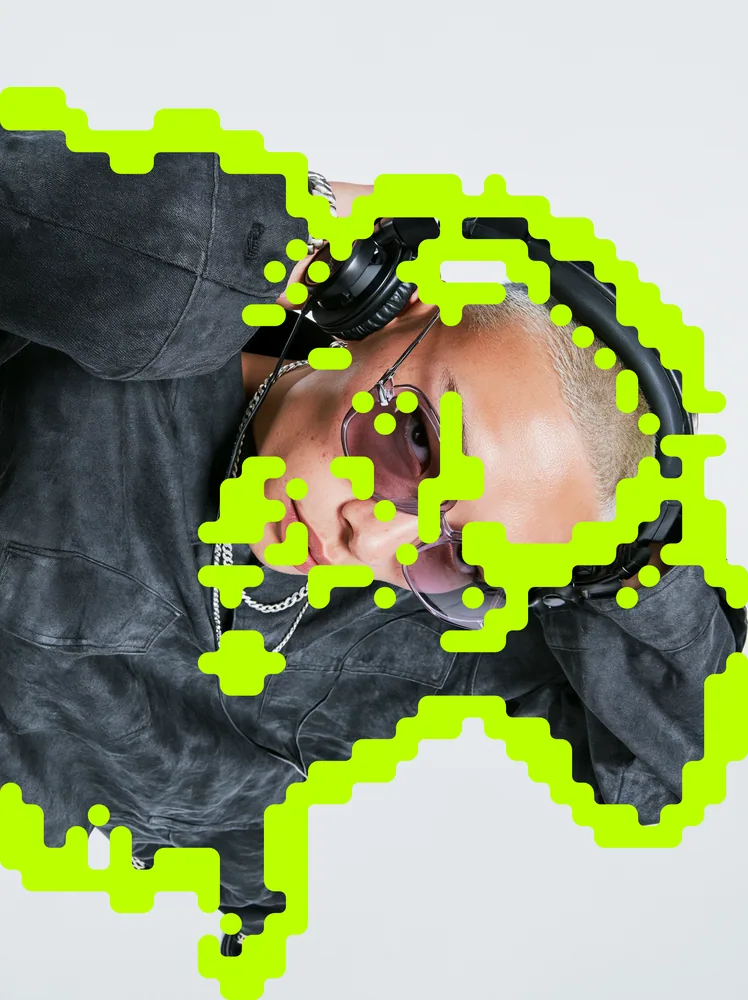
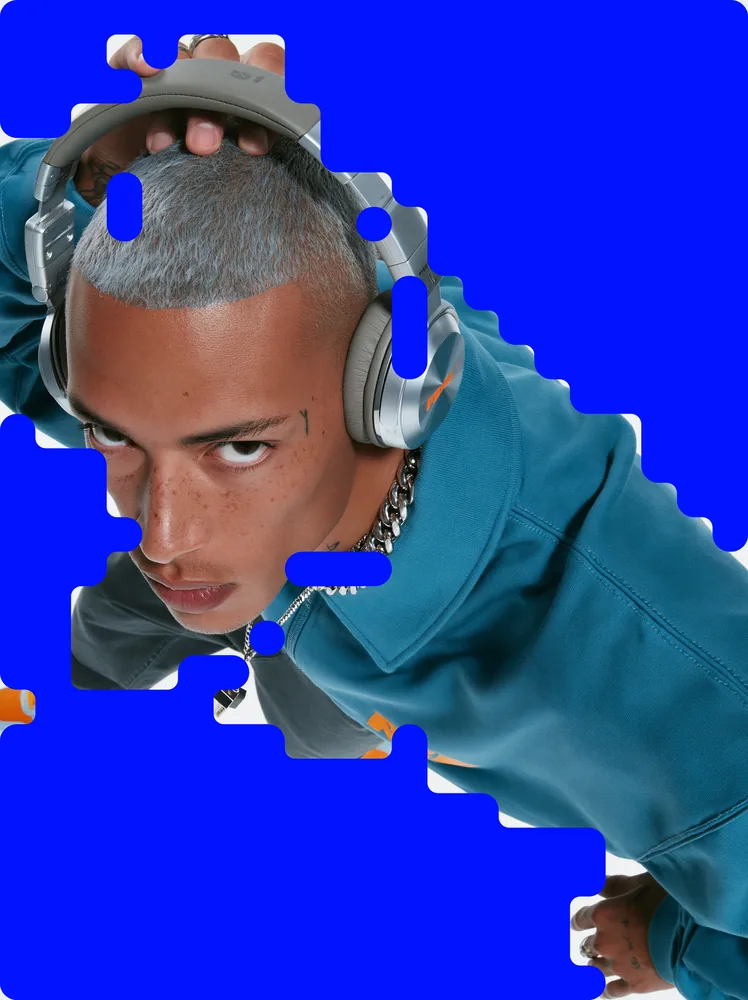
The pattern merge effect selects the edges, brights or darks of your picture and fills that selection with a grid of dots. Neighboring dots fuse into rounded blobs, or stay apart as dots, triangles or rings. Your picture stays visible underneath, or you can set a flat background. You can change the spacing, size and color. The pattern merge effect comes with Nexus, a plugin for Photoshop, After Effects, Illustrator, Affinity and Figma.
Made with this effect
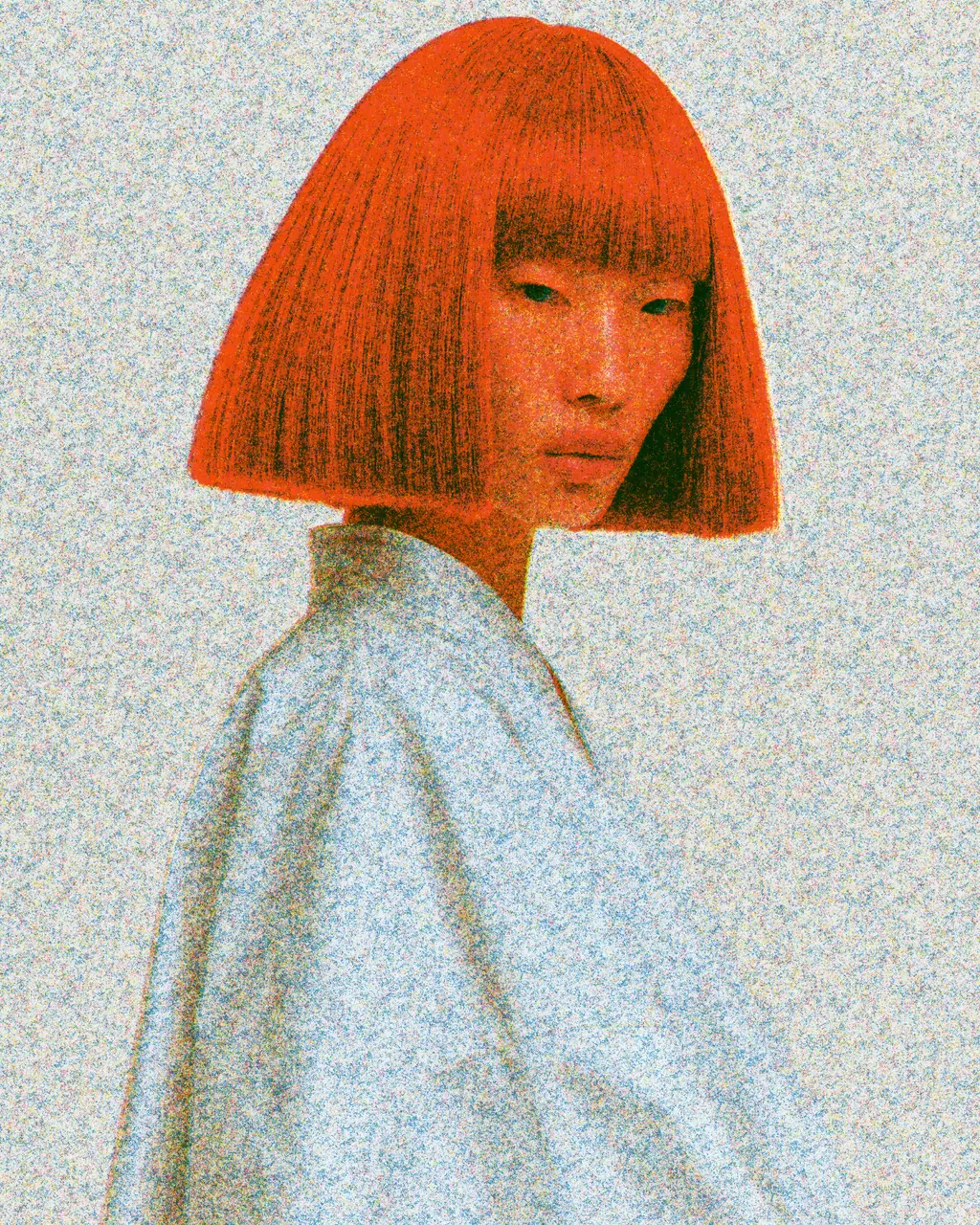
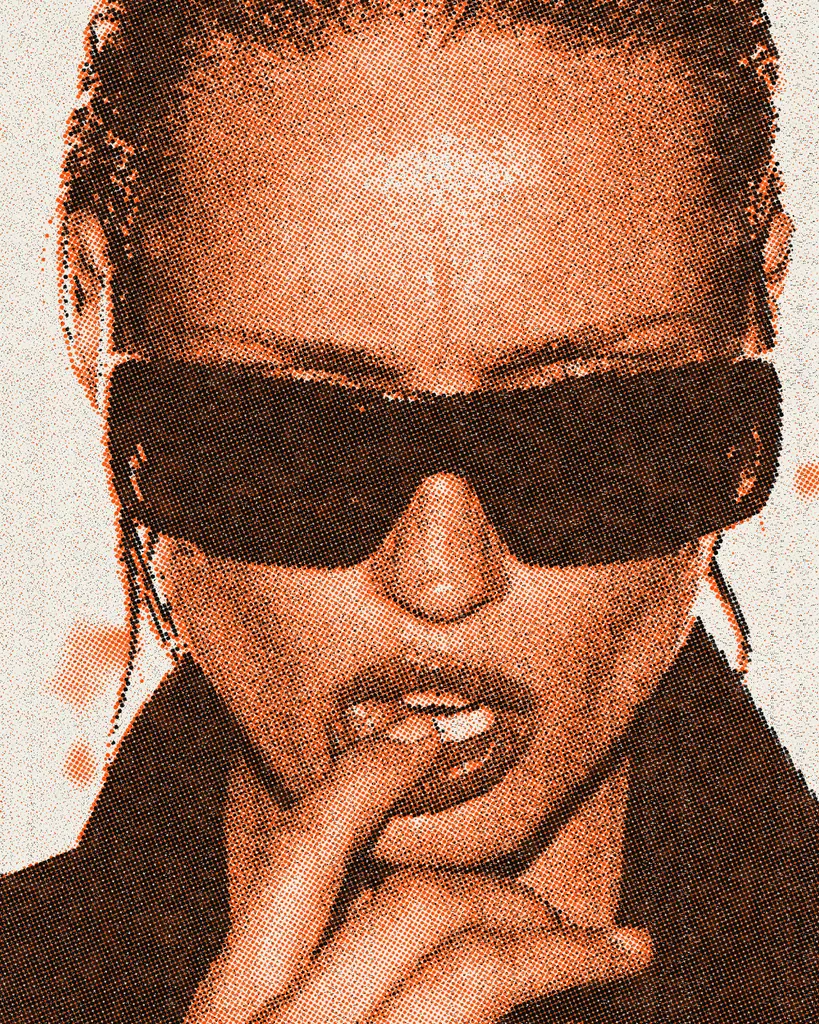
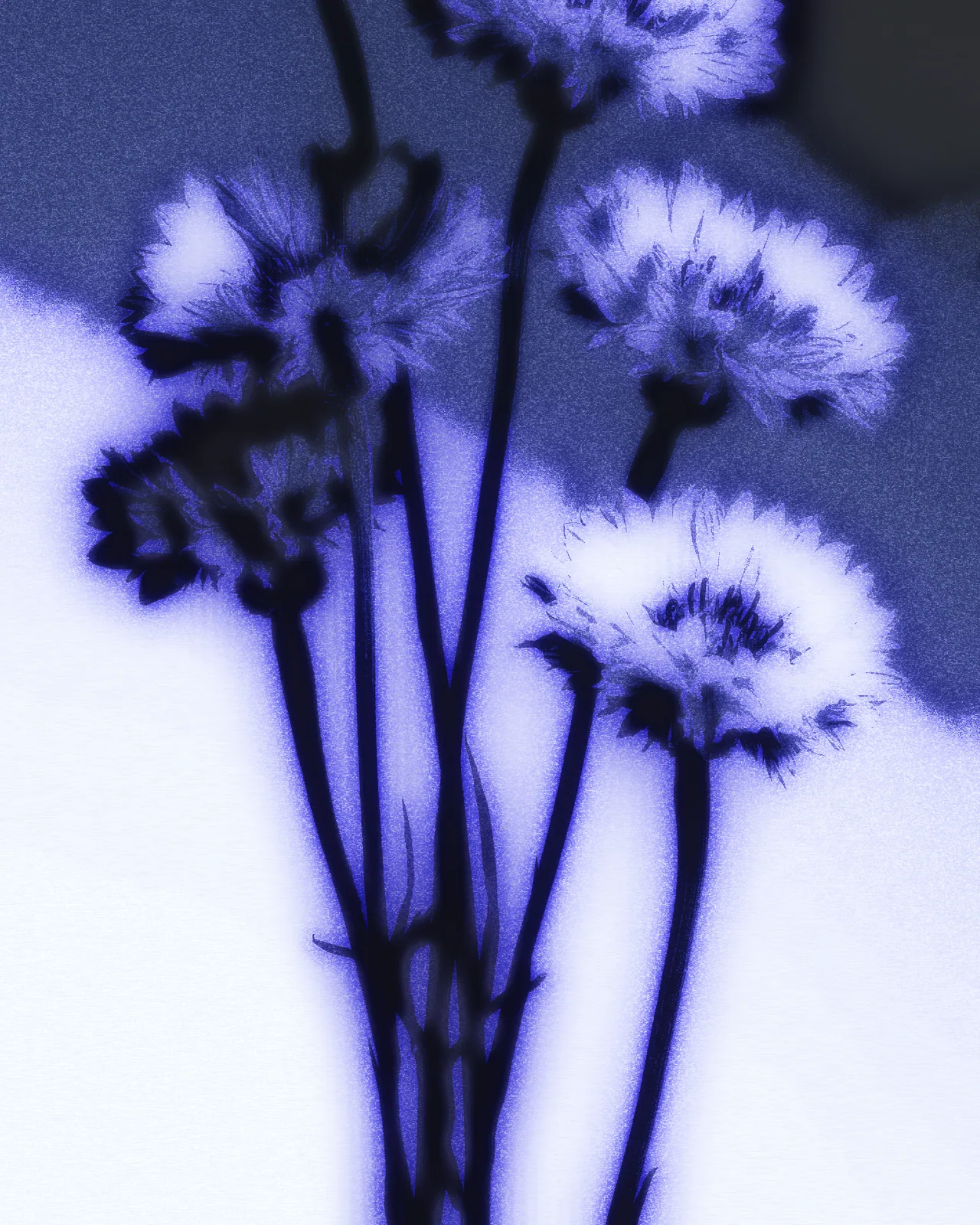
The same effect on 6 different photos. Try it on yours
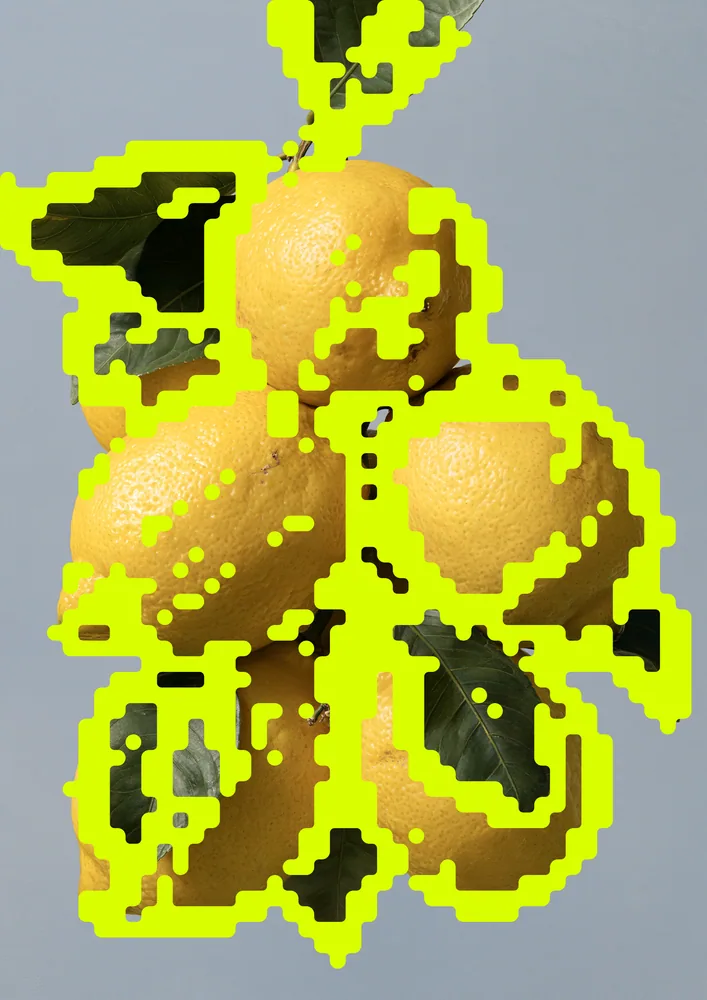
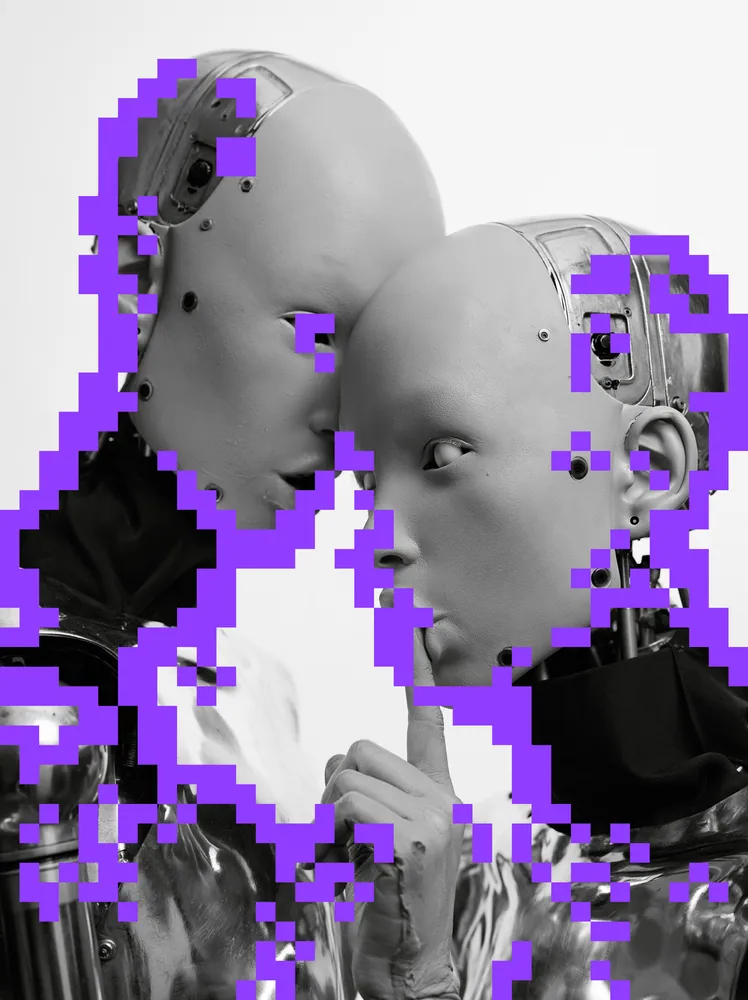
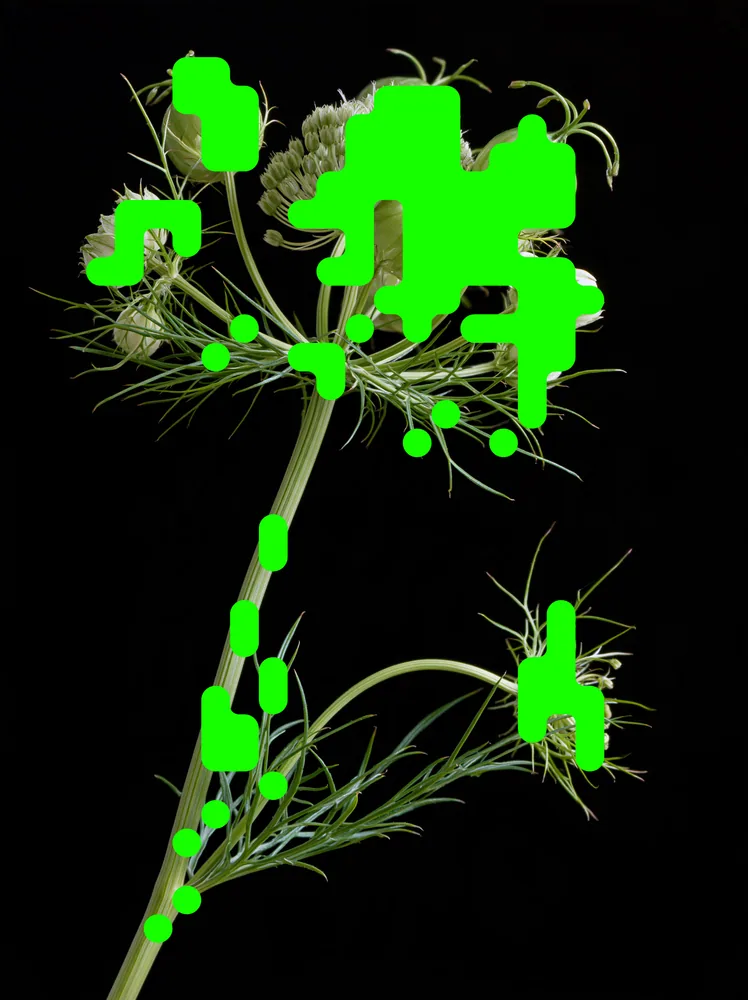
Use Pattern Merge Effect in your apps
It runs natively in Photoshop, After Effects, Illustrator, Affinity and Figma, with the same settings everywhere.
The plugins are free with an account. Paid plans add bigger renders and your own effects. See pricing
Photoshop
Apply it as a Smart Filter on a Smart Object, then double-click to change it.
After Effects
Drop it on any layer as a native effect and keyframe every control on the timeline.
Illustrator
Use a selection as the source and get back native vector paths or an embedded image.
Affinity
Open Filters > Plugins > Nexus, pick the look and apply it to a pixel layer.
Figma
Select a frame or image, run the look, and the result drops back into your file.
Settings worth touching
- Select
- Chooses what gets dots: the edges of shapes, the bright areas or the dark areas of the picture.
- Style
- Switches the marks between separate Dots, a Rounded Merge that fuses them, Triangles and Rings.
- Dot Spacing
- Sets the size of the grid. Small values trace fine detail, large values turn the picture into chunky blobs.
Questions, answered
It redraws part of a picture as a grid of dots that fuse where they touch, like a halftone that melts together. You choose whether it follows the edges, brights or darks.
Yes. The effect outputs vector shapes. The web editor exports SVG on the Creator plan, and Illustrator and Figma can bring the result back as native vector paths you can edit.
Install Nexus for Photoshop, free with a Nexus account, and apply the look as a Smart Filter on a Smart Object. Double-click it later to change Select, Style or Dot Color.
Yes. It lands as a native effect on any layer, and its controls can be keyframed on the timeline, so the dots can grow, spread or change color over time.
Yes. Turn off Transparent Background and the dots sit on the flat Background color you pick, instead of on top of your picture. Dot Color sets the color of the dots.